A theme changes how SillyTavern looks: colours, fonts, the shape of the message cards and anything its author put in Custom CSS. It never touches your characters, chats or API settings. This guide uses Lumi Day and Lumi Night, our free themes, as the example; the steps are the same for any theme file.
1. Get the theme file
A theme is a single .json file. Download the one you want, plus its wallpaper if it comes with one:
- Lumi Day and Lumi Night: from the download section of the theme page. You need a free TavernAPI account to download.
- Any other theme: from wherever its author shares it. Only import files from people you trust, because a theme's Custom CSS can restyle every part of the page.
2. Import it
- Open User Settings (the person icon in the top bar).
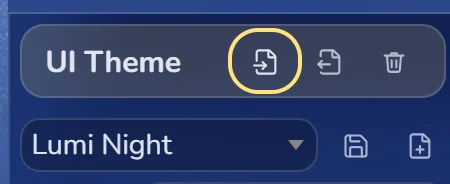
- Find UI Theme and click Import a theme file next to the theme list.
- Choose the
.jsonfile. SillyTavern adds the theme to the list and switches to it straight away.
To switch later, pick any theme in the UI Theme list. Your old theme stays in the list.
3. Add the wallpaper
- Open Backgrounds (the picture icon in the top bar).
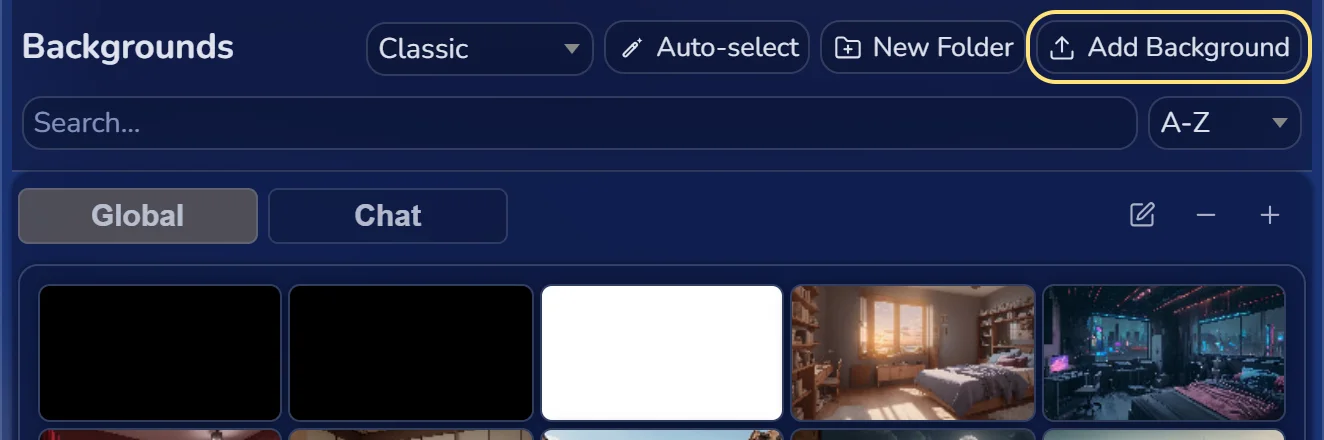
- Click Add Background and choose the wallpaper image.
- Click the new wallpaper to use it.
A wallpaper belongs to the chat, not to the theme: SillyTavern can remember a different background per chat. Lumi's glass cards are designed around their starry wallpapers, but any picture works.
4. Make the portraits sharp
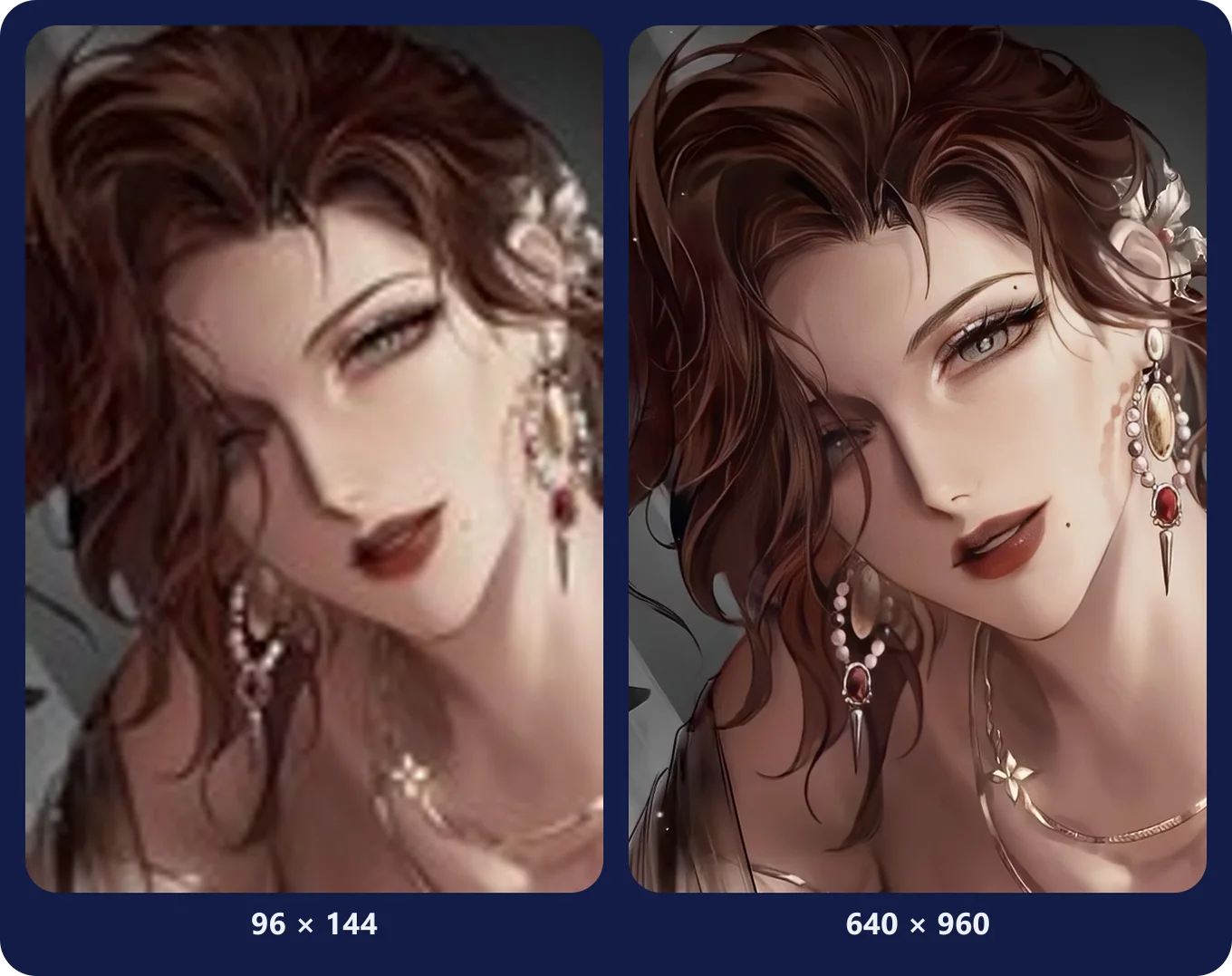
Themes with big portraits, like Lumi, show each character's avatar much larger than SillyTavern expects. SillyTavern saves avatars as small thumbnails (96 × 144 pixels), which look blurry when stretched. Raise the size in config.yaml in your SillyTavern folder:
thumbnails:
  dimensions:
    avatar:
      - 640
      - 960
    persona:
      - 640
      - 960
Then delete the folders data/default-user/thumbnails/avatar and data/default-user/thumbnails/persona and restart SillyTavern. It makes new, sharp thumbnails the next time it shows each avatar. On a slow phone, 512 and 768 is a good middle ground.
5. Keep blur on
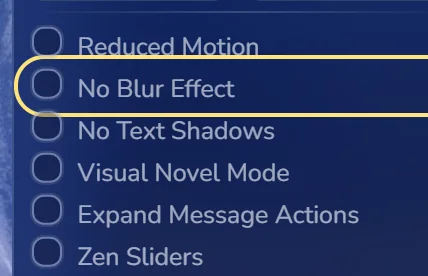
Frosted-glass themes need SillyTavern's blur effects. No Blur Effect in User Settings turns all of them off to save battery, and the glass then shows as plain tinted cards. Leave it unticked to see the theme as designed; tick it only if your device struggles.
Tweak the colours
Text colours are in User Settings → Main Text, Italics Text, Quote Text and Underlined Text, the same for every theme. Many themes, Lumi included, also put a short block of settings at the top of Custom CSS. Lumi's is called Tweak me and covers portrait height, card corners, blur strength and fonts; the theme page lists each setting.